
Quick Answer
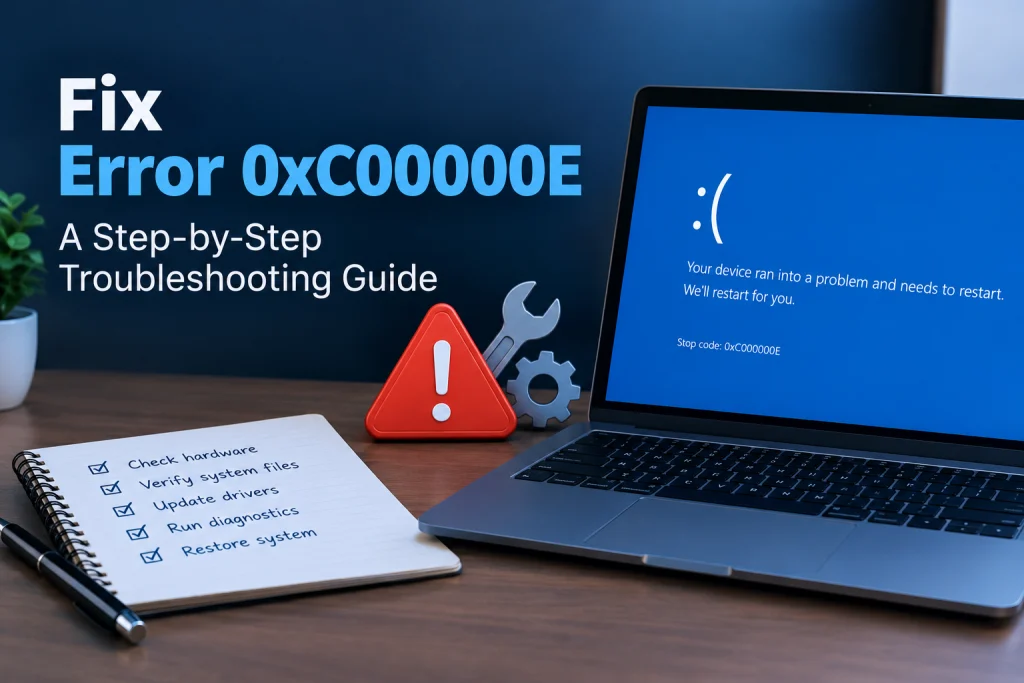
To fix error code 0xC00000E, you usually need to rebuild the Boot Configuration Data (BCD) using a Windows installation media and Command Prompt’s bootrec tool.
This common Windows boot error indicates that your PC cannot find or access essential startup files, often due to corrupted BCD or hardware connection issues.
What Does Error 0xC00000E Mean?
Error 0xC00000E is a critical Windows boot failure. While Microsoft does not provide an exact official definition for this specific code on its support sites, it universally indicates that the operating system cannot read or locate its Boot Configuration Data (BCD).
This means your PC is unable to find the necessary files to start Windows, leading to messages like “Your PC needs to be repaired” or “A required device isn’t connected or can’t be accessed.” The error typically occurs early in the startup process before Windows can load fully.
Why Does This Happen?
Several issues can trigger error code 0xC00000E, preventing Windows from booting correctly:
- Corrupted Boot Configuration Data (BCD): This is the most frequent cause, often resulting from abrupt shutdowns, power failures, or disk errors.
- Hardware Changes and Loose Connections: Recently installed hardware or loose SATA/M.2 connections can prevent your motherboard from detecting the boot drive.
- Damaged EFI System Partition: The partition crucial for UEFI systems may be missing, corrupted, or inaccessible.
- Disk Errors and Failing Drives: Bad sectors or a failing storage device can make Windows boot files unreadable or inaccessible. This is especially critical for modern SSDs, a topic we explore in our SSD vs. HDD: The External Drive Showdown.
- Incorrect BIOS/UEFI Settings: A misconfigured boot order or incorrect SATA mode can hide your operating system from the bootloader.
- Failed Windows Updates or Driver Installations: An interrupted update or an incompatible driver can corrupt essential system files, affecting systems like Windows 11.
- Missing or Corrupted Boot Loader Files: Key files such as
\Windows\System32\Winload.exeor\Windows\System32\Winload.efimight be damaged. - Disk Cloning Issues: Problems can arise after cloning a disk if boot files or BCD entries don’t correctly reflect the new drive.
- Malware Infection: Malicious software can sometimes corrupt critical system files.
How to Fix Error Code 0xC00000E
To resolve error code 0xC00000E, you will generally need a Windows installation media (a bootable USB drive or DVD) to access the Advanced Options menu. If you don’t have one, create it on another working PC using Microsoft’s official media creation tool. Boot your problematic PC from this media and select “Repair your computer” to begin troubleshooting.
-
Disconnect External Devices and Check BIOS/UEFI Settings
Remove all non-essential external devices like USB drives and external hard drives. Restart your computer and enter BIOS/UEFI settings (commonly by pressing F2, F10, F12, or Delete during boot). Confirm your internal drive is detected and set as the primary boot device. Ensure the SATA mode (AHCI or RAID) matches the setting used when Windows was installed. If “Windows Boot Manager” is an option, set it first. Disable “Fast Boot” if enabled. Save and exit.
-
Run Windows Startup Repair
Boot from your Windows installation media, select your language, and click “Next.” Choose “Repair your computer” and navigate to “Troubleshoot” > “Advanced Options” > “Startup Repair.” This tool attempts to automatically scan and rebuild the BCD. This step is particularly helpful if you need to fix error code 0xC00000E on Windows 11.
-
Manually Rebuild the BCD via Command Prompt
If Startup Repair fails, you can manually rebuild the BCD. From the “Advanced Options” menu, select “Command Prompt.”
Type the following commands, pressing Enter after each:
bootrec /fixmbrThis command writes a Windows 10/11-compatible Master Boot Record to the system partition.
bootrec /fixbootThis command writes a new boot sector to the system partition.
Note: If you receive an “Access Denied” error for
bootrec /fixboot, first typebootsect /nt60 sysand press Enter, then trybootrec /fixbootagain.bootrec /scanosThis command scans for Windows installations on your drives.
bootrec /rebuildbcdIf the program finds a Windows installation and asks whether to add it to the boot list, press
Y. This will help to fix error code 0xC00000E by repairing the boot configuration.For more boot-related issues, see our guide on Windows Won’t Boot? 10 Ways to Fix Your PC.
-
Check Disk for Errors with CHKDSK
Disk errors can cause the 0xC00000E error. From the “Advanced Options” menu, select “Command Prompt.”
Type the following command and press Enter:
chkdsk C: /fReplace
C:with the actual drive letter where Windows is installed, if different. This command scans the specified drive for errors and attempts to fix them.
| Symptom | Likely Cause | What to Do |
|---|---|---|
| “Your PC needs to be repaired” on startup. | Corrupted Boot Configuration Data (BCD). | Run Startup Repair or manually rebuild BCD via Command Prompt. |
| Error after installing new hardware or moving PC. | Loose hardware connections, incorrect BIOS/UEFI settings. | Disconnect external devices, check internal cables, verify BIOS boot order and SATA mode. |
| Windows fails to find startup files. | Damaged EFI System Partition or boot loader files. | Use bootrec /fixboot and bootrec /rebuildbcd. |
| Frequent crashes or slow performance before 0xC00000E. | Disk errors or a failing storage drive. | Run chkdsk C: /f to check for and fix disk errors. |
When to Contact the Manufacturer or a Repair Shop
If the software troubleshooting steps above don’t resolve error code 0xC00000E, the issue is likely hardware-related. This could mean a failing hard drive or SSD, a motherboard problem, or an issue with your system’s firmware that cannot be fixed through software commands.
At this point, we recommend contacting your computer’s manufacturer (e.g., Dell, HP, Lenovo, Microsoft Surface) or an authorized repair provider. They have specialized diagnostic tools and expertise to identify and fix deeper hardware problems, ensuring any potential warranty (like an extended protection plan) remains intact.
FAQ
What does error code 0xC00000E9 mean?
Error code 0xC00000E9 is a different but related Windows boot error. While both indicate boot issues, 0xC00000E9 typically points to unexpected I/O errors or issues with hardware communication. Since official detailed documentation for this specific code is limited, general troubleshooting for boot errors, such as checking all physical connections and running disk checks, can be a starting point if you encounter error code 0xC00000E9 Windows 10 or error code 0xC00000E9 Windows 11.
Can Windows Startup Repair fix 0xC00000E?
Yes, Windows Startup Repair is designed to diagnose and automatically fix many boot-related issues, including corrupted Boot Configuration Data, which is the most common cause for error 0xC00000E. It’s often the first and easiest step to attempt when facing this problem.
What if I don’t have a Windows installation media?
If you don’t have Windows installation media, you will need to create one. On a different, working computer, visit the official Microsoft website and download the Media Creation Tool. Use this tool to create a bootable USB drive or DVD with the correct version of Windows (e.g., Windows 11) for your problematic PC.
The Bottom Line
Encountering error code 0xC00000E can be frustrating, as it completely prevents Windows from starting. However, by carefully following the steps outlined in this guide, particularly those involving a Windows installation media and the Command Prompt, you can often restore your system’s boot configuration.
Most instances of the “fix error code 0xC00000E” challenge stem from corrupted BCD, and tools like bootrec are powerful in addressing these issues. Remember to always back up your data if you can, and if software solutions fail, don’t hesitate to seek professional hardware assistance.