
Quick Answer
To resolve this issue quickly, unplug all external USB drives, printers, and peripherals, then restart your PC. If it still fails, boot into the Windows Recovery Environment to run Startup Repair or use Command Prompt to run disk checks.
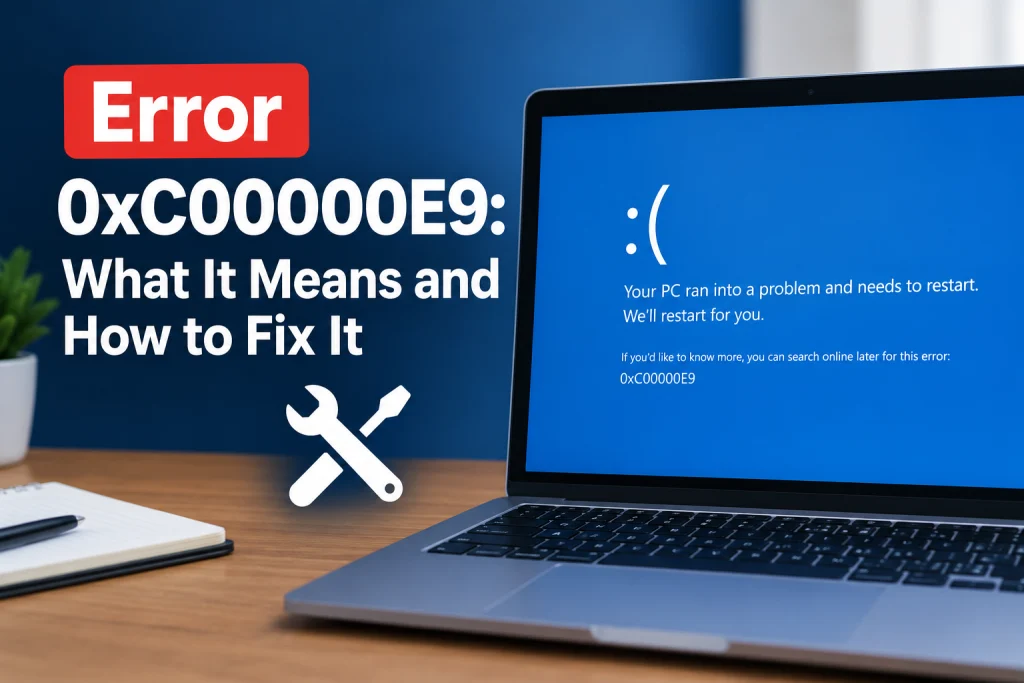
When you encounter a 0xc00000e9 error code fix becomes your top priority because your computer cannot start properly. This startup failure prevents the operating system from reading the primary drive, leaving your machine stuck on a blue or black screen before the login screen appears. Our research team outlined safe software steps to get your operating system running again.
What Does Error 0xC00000E9 Mean?
Error 0xC00000E9 officially indicates “An unexpected I/O error has occurred.” This means the Windows Boot Manager encountered an unexpected input/output error during startup, preventing Windows from loading.
This startup error affects Windows 11, Windows 10, and Windows 8/8.1. You may also see accompanying messages such as “The system registry file is missing or corrupt” or “There was a problem with a device connected to your PC.” When this happens, Windows cannot safely access the files it needs to load your desktop.
Why Does This Happen?
An unexpected input/output breakdown can stem from physical hardware faults or corrupted software. The most common causes include:
- Malfunctioning external hardware or peripherals like USB drives, printers, mice, or keyboards.
- Removable storage devices pulled out while actively in use.
- Corrupted file systems or bad sectors on your storage drive.
- Corrupted system registry files caused by failed updates or abrupt shutdowns.
- Outdated or corrupted storage controller drivers.
- Boot sector viruses or other system malware.
- Improperly configured UEFI or BIOS settings, including boot order or SATA mode.
- Damaged I/O ports or loose connections between your motherboard and storage drive.
How to Apply the 0xc00000e9 Error Code Fix
Follow these safe troubleshooting steps in order, starting with the simplest solutions. If you need broader recovery steps for a machine that refuses to start, check our guide on Windows won’t boot fixes.
- Disconnect all external peripherals. Turn off your system completely. Unplug all non-essential hardware, including USB drives, external hard drives, printers, card readers, webcams, and mice. Power the PC back on with only the essential monitor connected to see if a faulty external device caused the conflict.
- Access the Windows Recovery Environment (WinRE). If your PC cannot boot normally, load the recovery menu. Turn on your PC, and as soon as Windows attempts to load, press and hold the Power Button for 5 to 10 seconds to perform a hard shut down. Repeat this process twice, and on the third start, Windows will boot into the Recovery Environment. Alternatively, boot from a Windows installation USB drive or DVD and select “Repair your computer.”
- Run Startup Repair. From the Recovery Environment, navigate through the menus to repair startup problems. Click Troubleshoot, select Advanced options, and click Startup Repair. Windows will automatically diagnose and attempt to repair startup issues.
- Run System Restore. If a recent system change triggered this issue, rolling back can resolve it. In WinRE, navigate to Troubleshoot > Advanced options > System Restore. Choose a restore point created before the error began and follow the on-screen prompts.
- Scan the disk using Check Disk. Open the command utility to scan your storage drive for file system corruption and bad sectors. In WinRE, go to Troubleshoot > Advanced options > Command Prompt. Enter the following command:
chkdsk /f /r C:This command fixes file system errors, locates bad sectors, and recovers readable data, requiring administrator privileges (replace C: if your Windows installation is on a different drive).
- Repair system files with SFC. While still inside the WinRE Command Prompt, check for missing or corrupted operating system components. Enter this command:
sfc /scannowThis command scans protected operating system files and repairs corrupted files, requiring administrator privileges.
- Rebuild the boot configuration data. Boot configuration corruption frequently triggers I/O failures during startup. In the Command Prompt window, execute these two commands one at a time:
bootrec /fixmbrThis command writes a new Master Boot Record to the system partition.
bootrec /rebuildbcdThis command scans connected drives for Windows installations and lets you rebuild the boot configuration data. If it finds your Windows installation, type Y to add it to the boot list. For related startup issues, read our walkthrough to fix error 0xC00000E.
- Reset BIOS/UEFI settings to optimized defaults. Access your computer’s BIOS or UEFI settings (usually by pressing F2, Del, or another key during startup). Reset them to their factory or optimized default settings, save changes, and restart.
- Update or roll back storage drivers. If you can boot Windows into Safe Mode, open Device Manager. Double-click Disk drives to display your storage devices, right-click the affected drive, and select Update Driver. If the error started after a recent driver update, select Properties, go to the Driver tab, and choose Roll Back Driver.
- Reinstall Windows as a last resort. If all other troubleshooting steps fail, you may need to reinstall Windows. Always back up all important data before reinstalling to prevent permanent data loss.
| Symptom | Likely Cause | What to Do |
|---|---|---|
| Error code appears immediately after connecting a flash drive or printer | Malfunctioning external hardware or damaged I/O port | Disconnect all USB devices and restart using only your monitor |
| Error displays with missing registry file warnings | Corrupted operating system files or incomplete update | Run Startup Repair, System Restore, or sfc /scannow in WinRE |
| Error loops during startup and drive is unreadable | Bad drive sectors or failing storage hardware | Run chkdsk /f /r C: or seek professional drive recovery |
When to Contact the Manufacturer or a Repair Shop
If software-level troubleshooting fails to resolve the issue, the root cause is likely hardware failure. Damaged SATA cables, faulty M.2 SSD connections, damaged I/O ports, or internal drive wear can prevent normal read and write operations.
If you are uncomfortable opening your PC case to check internal components, or if your hard drive is not recognized after performing troubleshooting steps, contact an expert or repair service. If your computer is covered under warranty, reach out to the manufacturer directly. If you have critical files stored on a failing drive, contact a professional data recovery service immediately before further disk operations cause permanent loss.
FAQ
Can a bad USB drive cause error 0xC00000E9?
Yes. If a malfunctioning or damaged removable storage device is connected during startup, the Windows Boot Manager may encounter an unexpected input/output conflict and stop loading.
Will running Startup Repair delete my personal files?
No. Startup Repair is designed to repair boot-critical operating system files and configuration settings without modifying or deleting your personal documents and files.
What should I do if Check Disk gets stuck?
Allow the command sufficient time to complete, especially on large storage drives. If it freezes completely on bad sectors, stop the process and contact a professional data recovery provider to avoid worsening drive damage.
The Bottom Line
Dealing with a sudden startup failure can be frustrating, but reaching a successful 0xc00000e9 error code fix usually comes down to removing conflicting hardware or repairing your boot files. Always begin by unplugging non-essential peripherals before moving on to tools like Startup Repair and Check Disk inside the Windows Recovery Environment. If internal disk commands cannot restore access or your drive has hardware faults, protect your important data by working directly with an authorized repair provider.
Sources: intel.com, youtube.com, microsoft.com, gillware.com, solidigm.com, davescomputers.com.