
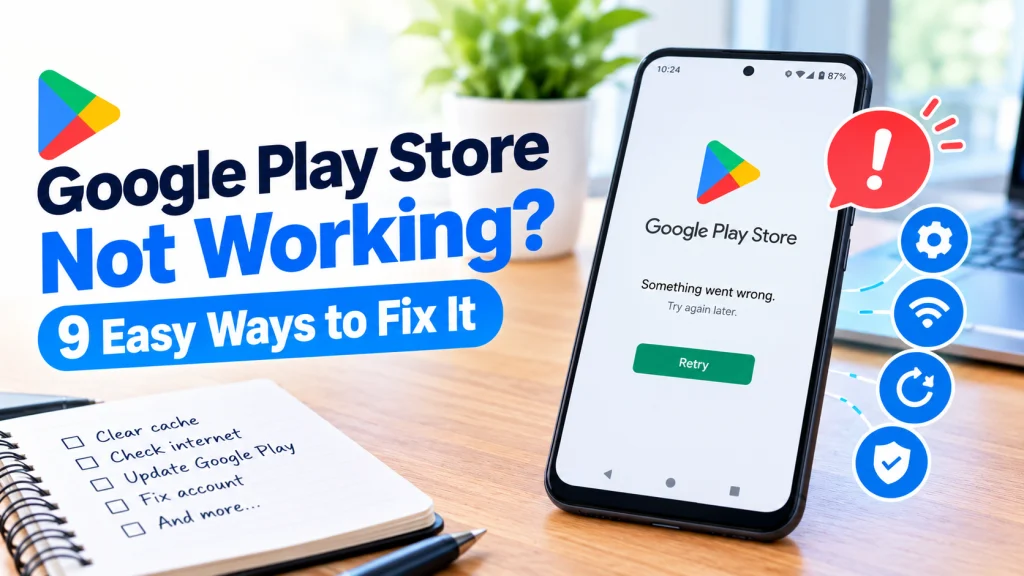
Before restarting your phone or factory resetting, try clearing your cache, checking network settings, or fixing your date and time to restore apps.
Quick Answer
If the Google Play Store is not working, clearing the app’s cache and data or restarting your device resolves the issue most of the time.
Network connectivity errors, incorrect system date settings, and corrupted Google Play Services data can also freeze downloads. Working through basic connection checks and storage resets will get your app installations back on track quickly.
When you encounter the google play store not working, app updates stop, installations hang indefinitely, and error codes like 492, 505, or 905 can bring your device to a halt. The problem might show up as a persistent “Check your connection and try again” error or an app crash message reading “Unfortunately Google Play Store Has Stopped.” Whether you run into the google play store not working on android phones, tablets, or connected streaming hardware, pinpointing the source of the glitch takes only a few minutes.
Why Does This Happen?
- Unstable network connection: A weak Wi-Fi signal, toggled cellular settings, or an active VPN connection can block access to Google servers.
- Corrupted application cache: Stored temporary files in the Google Play Store or Google Play Services can glitch over time.
- Incorrect system clock: Mismatched date and time settings prevent security certificates and servers from authenticating properly.
- Insufficient internal storage: Devices with full storage drives cannot allocate room to download or unpack new packages.
- Outdated software: Running an obsolete build of the Google Play Store app or missing a Google Play system update can cause stability failures.
- Account authentication errors: Desynchronized Google account tokens can reject transaction and download requests.
How to Fix the Google Play Store Not Working
- Check and reset your network connection. Open Settings > Network & internet (or Connections on Samsung One UI). Turn Mobile data off and on again, verify your data signal bars, or turn on Airplane mode for 10 seconds before turning it off. If using Wi-Fi, toggle the connection off and move closer to your router.
- Restart your device. Press and hold the Power button, then select Restart. On some devices, you might need to press Power + Volume Down for a few seconds to force restart.
- Force stop the Google Play Store. Open Settings > Apps > See all apps > Google Play Store. Tap Force stop, select OK to confirm, and then relaunch the store from your home screen or app drawer.
- Clear Google Play Store cache and data. Go to Settings > Apps (or Apps & notifications) > Google Play Store > Storage & cache (or Storage). Tap Clear cache, then tap Clear storage (or Clear data) and select Delete to wipe corrupted temporary files.
- Clear cache and data for Google Play Services. Navigate to Settings > Apps > See all apps > Google Play services. Tap Storage & cache, choose Clear cache, then select Clear storage > Clear all data and confirm with Delete (supported on Android 7.0 and higher).
- Correct your date and time settings. On Pixel and stock Android, go to Settings > System > Date & time. On Samsung One UI, navigate to Settings > General management > Date and time. Turn on both Automatic date & time and Automatic time zone to ensure proper server synchronization.
- Update Google Play Store and your Android OS. In the Play Store, tap your profile icon at the top right, select Settings > About, and tap Play Store version to trigger any pending updates. Then check your operating system by going to Settings > System > System updates (or Settings > About phone > Android version > Google Play system update on Android 10 and newer).
- Remove and re-add your Google Account. Before proceeding, make sure to back up your personal files safely. Open Settings > Passwords & accounts (or Accounts & backup on Samsung), tap your Google account, select Remove account, restart your device, and re-add it under the same menu.
- Uninstall Google Play Store updates. Open your device’s Settings app, navigate to Apps (or Apps & notifications), select Google Play Store, and choose the option to uninstall updates (check your device manual or the manufacturer’s support site if the exact menu layout differs on your phone). This rolls the store back to its factory version so it can re-update cleanly.
| Symptom | Likely Cause | What to Do |
|---|---|---|
| App crashes immediately on launch | Corrupt Play Store cache or damaged background services | Clear cache and data for both Play Store and Google Play Services. |
| “Check your connection” message | Network interruption, VPN interference, or mismatched time | Toggle Airplane mode and enable Automatic Date & Time. |
| Download errors (Codes 492, 505, 905) | Account token glitch or corrupt app store update | Uninstall Play Store updates and re-authenticate your Google account. |
When to Contact the Manufacturer or a Repair Shop
If you have worked through all software steps and the store still fails to load or download packages, the issue may stem from damaged flash memory or operating system partition corruption. If your phone or tablet is under its standard one-year warranty or extended manufacturer coverage, contact Google, Samsung, or your device maker’s official support line before attempting any third-party servicing.
An authorized service technician can run diagnostics to verify if bad storage blocks are blocking installations. Avoid unauthorized third-party kiosks that offer non-certified firmware flashing, as modifying protected system partitions can permanently trip security flags and void warranty claims.
FAQ
Why does Google Play say download pending and never start?
This typically occurs when another background download is queued or when the Google Play Store’s cache has desynchronized. Force stopping the app and clearing its cache in your device settings will clear the frozen queue.
Will clearing Google Play Services data delete my personal files?
No, clearing data for Google Play Services only removes cached service files and temporary authentication data. Your personal documents, media files, contacts synced to the cloud, and installed applications will remain intact.
Can an active VPN prevent Google Play Store from downloading apps?
Yes, Virtual Private Networks can route your traffic through servers that conflict with your Google account’s regional store settings. Disabling your VPN temporarily allows the Play Store to communicate directly with your local server region.
The Bottom Line
Dealing with the google play store not working can disrupt everyday tasks, but software conflicts are rarely permanent. In most cases, resetting the network connection, syncing the device clock, or clearing out the storage cache in Google Play Services will resolve the hold-up without risking your data.
Work methodically from basic restarts to account resynchronization to get your downloads running smoothly again.
Sources: businessinsider.com, wikihow.com, guidingtech.com, microsoft.com, wikitechy.com, bajajfinserv.in.